How to Find Out What Shopify Theme a Store Is Using (4 Ways)

The short answer
View the store's page source (Ctrl+U) and search for Shopify.theme. The theme is the value of schema_name and the version is schema_version. Ignore the name field, which is only the store owner's label. If there's no Shopify.theme object, the store is most likely headless.
You land on a competitor's store, the design looks great, and you want to know what theme it's built on. Good news: you don't need to guess from fonts and layouts. Every Shopify storefront that uses a theme writes the theme's name and version into the page, and you can read it in under a minute.
This guide covers four ways to find it, how to read the result correctly (most people read the wrong field), and what to do with the answer once you have it.
What Shopify theme is a store using? The quick method
Open the store, press Ctrl+U (Windows) or Cmd+Option+U (Mac) to view the page source, then press Ctrl+F and search for Shopify.theme. You'll find a small object like this:
Shopify.theme = {"name":"Site Ops Release: BFCM GWP Copy Updates","id":190410588250,"schema_name":"Dawn","schema_version":"7.0.0","theme_store_id":null,"role":"main"};
The theme is the value of schema_name, here Dawn. The version is schema_version. That's the whole trick. The rest of this article explains why the obvious field is the wrong one, and what to do when the object isn't there.
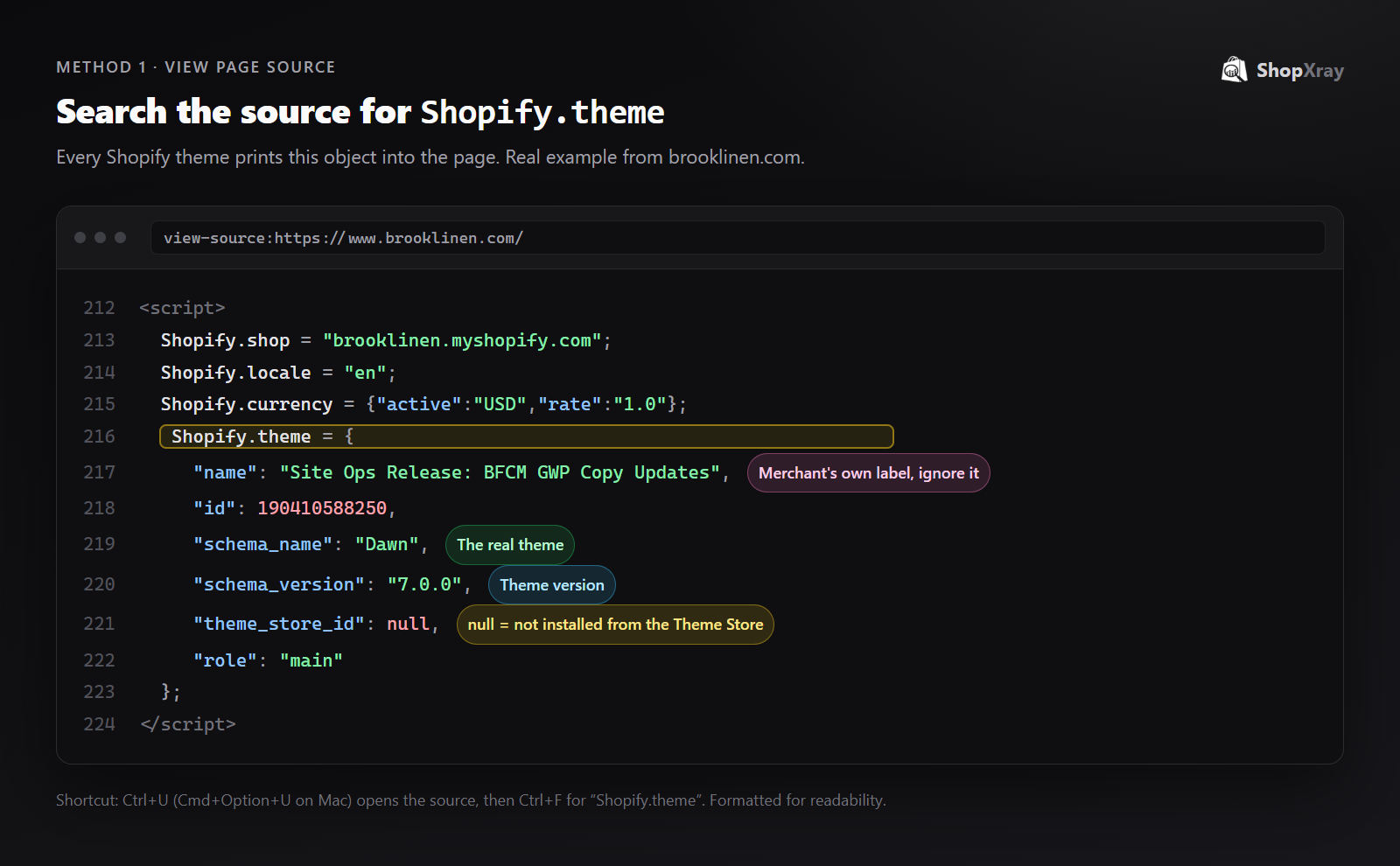
Method 1: View the page source
This works on any desktop browser and needs no tools.
- Open the store's homepage (any page works, but the homepage loads fastest).
- Right-click an empty area and choose View page source, or use the shortcut above.
- Search the source for
Shopify.theme. - Read
schema_nameandschema_version.
If your search finds nothing, try theme_store_id or schema_name instead. Some stores minify their HTML, but the object is still there in the same format.
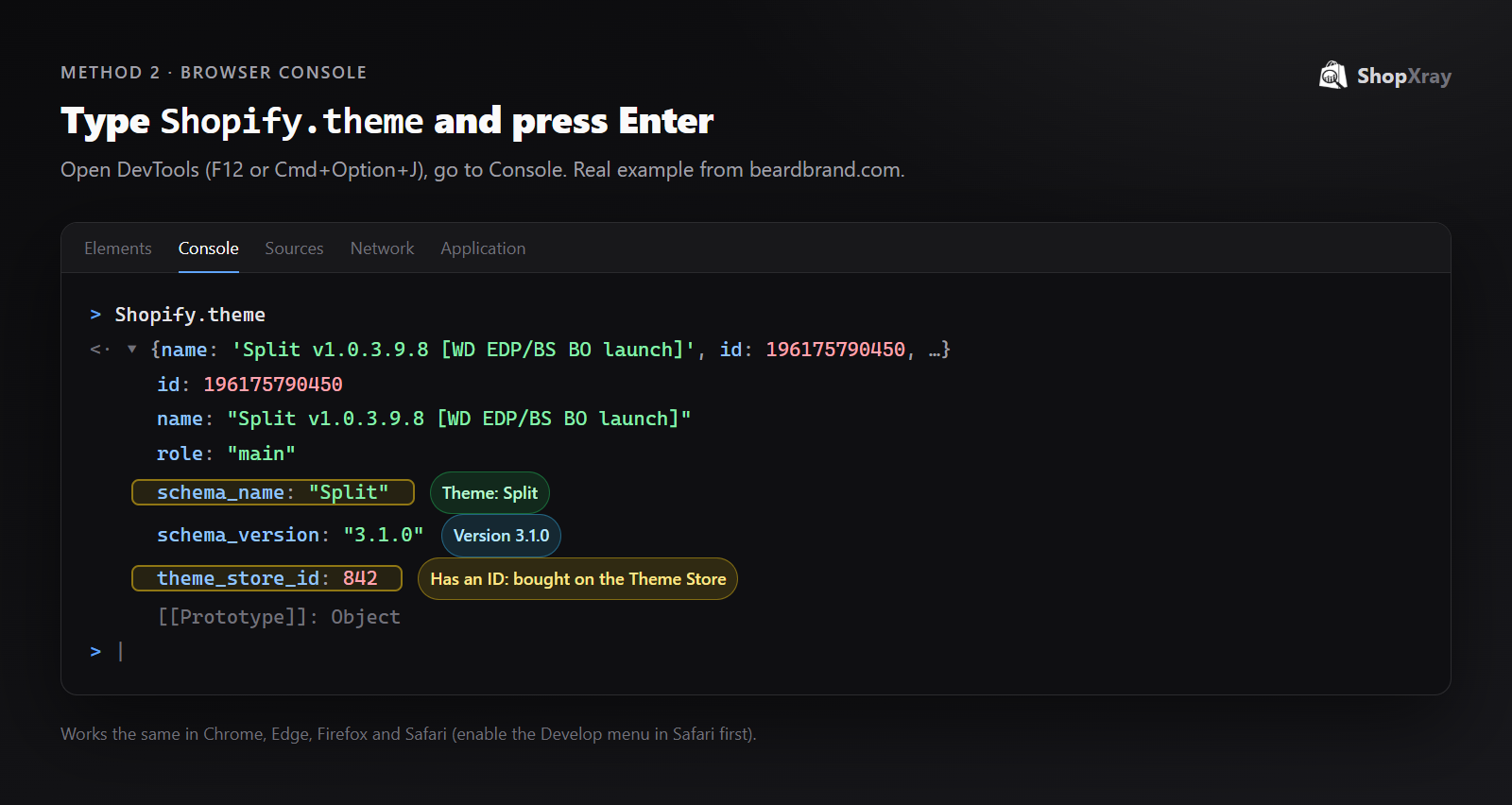
Method 2: Use the browser console
If you'd rather not dig through thousands of lines of HTML, ask the page directly.
- Open the store and press F12 (or Cmd+Option+J on Mac) to open DevTools.
- Click the Console tab.
- Type
Shopify.themeand press Enter.
The browser prints the same object, already formatted. This is the fastest manual method, and it also works on stores that load their HTML in unusual ways.
Method 3: Look for clues in the storefront
Sometimes you're on a phone, or the object has been stripped out. A few visible clues still help:
- Footer credits. Some paid themes leave a "Theme by …" credit in the footer. Many stores remove it, so its absence means nothing.
- Stylesheet names. In the page source, Shopify's free themes from the Dawn family load files like
base.cssand manycomponent-*.cssfiles. Other theme families have their own naming patterns. - Theme Store demos. If you have a hunch, open the theme's demo store on the Shopify Theme Store and compare the product page layout, cart drawer and header. Layout details survive even heavy rebranding.
These clues help you form a guess. Methods 1, 2 and 4 give you the answer.
Method 4: Use a Shopify theme detector
A theme detector does methods 1 and 2 for you and adds context you can't get from the source alone. ShopXray's Shopify theme detector shows the theme, its version, and whether it's a free or paid Theme Store theme, with its price. It works on mobile too, where viewing source is awkward.
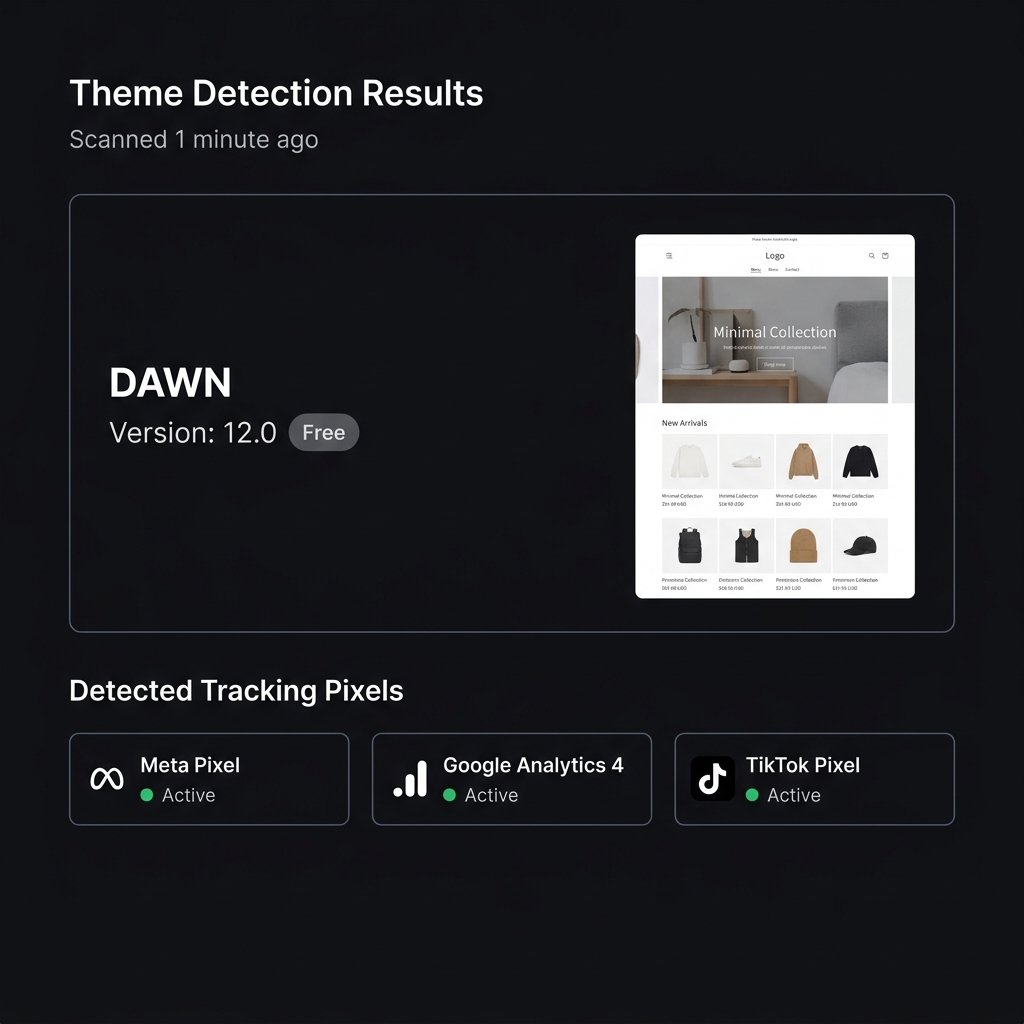
A detector also helps when you're comparing many stores. Checking ten competitors by hand takes ten minutes. In the store analyzer it's one search per store, and you also get each store's apps and tech stack on the same screen.
How do you read the result correctly?
Here's how to read the fields:
| Field | What it means | Reliable? |
|---|---|---|
schema_name | The theme's real name, set by the theme developer | Yes, this is the answer |
schema_version | The theme version the store is running | Yes |
theme_store_id | The Theme Store listing ID, if installed from the Theme Store | Yes when present; null is common |
name | The store owner's label for their copy | No, it's just a label |
role | main means this is the live theme | Yes |
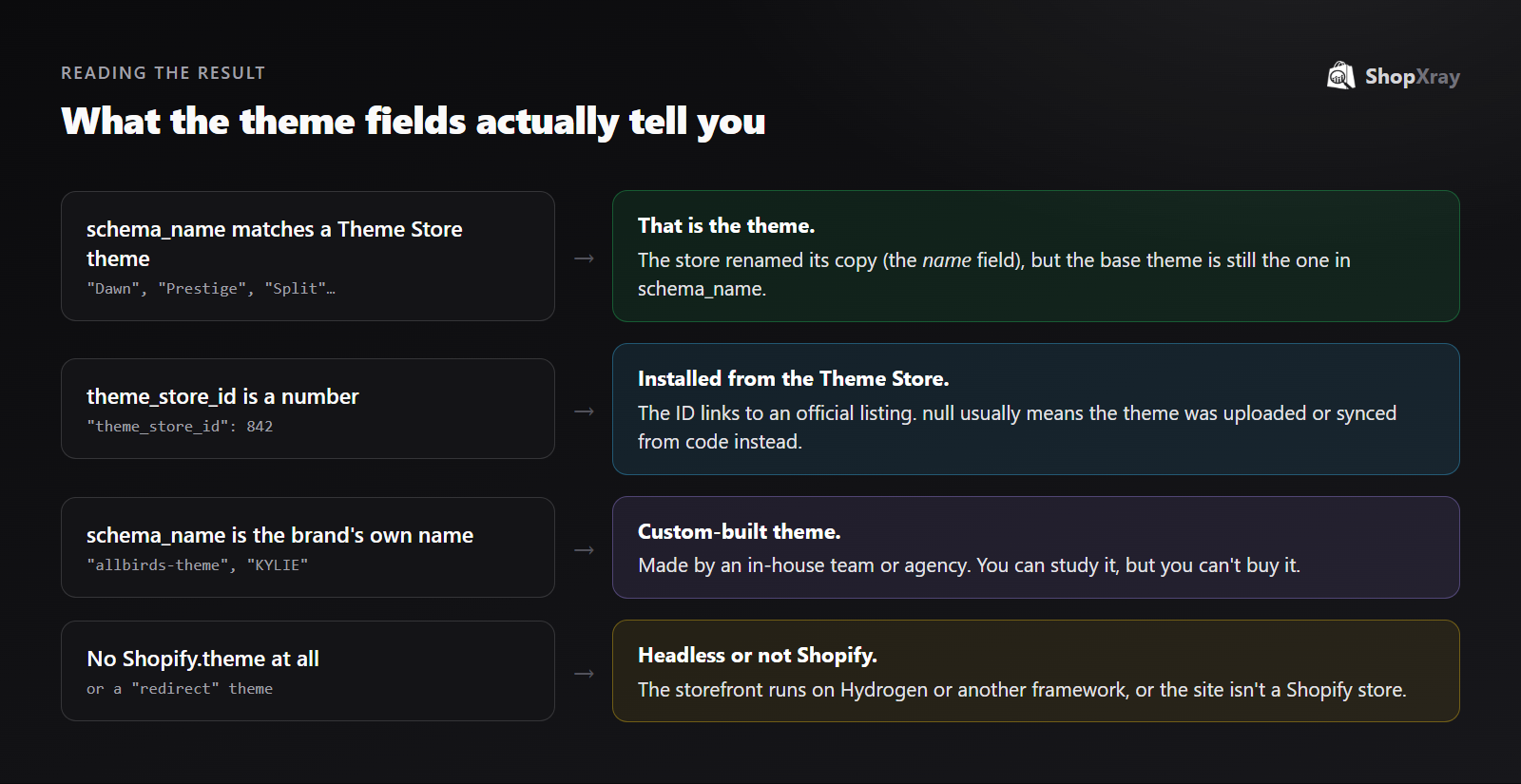
theme_store_id deserves a closer look. A number means the theme was installed from the official Theme Store. null usually means the store uploaded the theme as a file or deploys it from code, often because a developer or agency works on it. In that case schema_name is still the theme it started from.
Real examples: what popular Shopify brands run
We checked a handful of well-known Shopify brands in November 2026. Themes change, so treat this as a snapshot:
| Store | Label in name | schema_name (version) | theme_store_id | What it tells you |
|---|---|---|---|---|
| brooklinen.com | "Site Ops Release: BFCM GWP Copy Updates" | Dawn (7.0.0) | null | Built on Shopify's free Dawn theme and heavily customized in code |
| mvmt.com | "MOVADO - MVMT PROD [11-16-26]" | Prestige (11.3.0) | null | Runs the paid Prestige theme, deployed as an uploaded copy |
| beardbrand.com | "Split v1.0.3.9.8 [...]" | Split (3.1.0) | 842 | Paid Split theme, installed from the Theme Store |
| deathwishcoffee.com | "VD Sale+Retainer | deathwish-shopify-20/production" | Dawn (10.0.0) | null | Another large brand building on free Dawn |
| allbirds.com | "[DNAM Theme July 2026]" | allbirds-theme (1.231.12) | null | Fully custom theme built in-house |
| huel.com | "hydrogen-redirect-theme-main" | Hydrogen Redirect Theme (1.0.0) | null | Headless storefront; the theme only redirects visitors |
Notice the version numbers too. A store on an old version of Dawn has customized the theme so much that updating it isn't worth the effort. That tells you the store has (or had) developers working on its code.
Why can't I find the theme on some stores?
There are four common reasons:
- The store is headless. Brands built on Shopify's Hydrogen framework or another front end (Next.js, for example) don't use an Online Store theme for their storefront, so there's no
Shopify.themeto read. You'll sometimes see a "redirect" theme instead, like Huel's. - The theme is custom.
schema_nameshows the brand's own name. The store is still on Shopify, but the theme isn't something you can buy. - You're on a password page. Stores that haven't launched, or are between drops, show a password page that may not match the real storefront.
- It isn't a Shopify store. If there's no
Shopify.object at all and nocdn.shopify.comfiles in the source, the site runs on another platform.
What can you do with a competitor's theme?
Knowing the theme is a starting point. Here's how to use it well:
- Try the same theme for free. Shopify lets you add any Theme Store theme to your store and customize it before you pay. You only pay when you publish a paid theme.
- Separate the theme from the customization. If a competitor runs Dawn but their store looks nothing like the Dawn demo, the difference is custom work. Copying the theme won't copy the result.
- Check their apps next. Reviews, upsells, bundles and search are usually apps, not theme features. Use an app detector to see what they've added on top.
- Read the investment signal. A free theme on an old version usually means in-house developers. A current paid theme with few changes suggests a smaller team buying polish off the shelf. A custom theme means a bigger budget.
- Don't copy custom code. Theme Store themes are licensed per store, and custom themes belong to the brand that paid for them. Use them for inspiration, not as a template to clone.
If you're researching competitors more broadly, the theme is one piece of a full Shopify competitor analysis, alongside their products, apps, pricing and ads.
Frequently asked questions
Can I see what theme a Shopify store is using for free?
Yes. Open the store, view the page source (Ctrl+U or Cmd+Option+U) and search for Shopify.theme. The theme name is in schema_name. Free detectors such as ShopXray's theme detector do the same thing in one click.
Why does the theme name look like "Production" or "Copy of Dawn"?
That's the name field, which is the label the store owner gave their copy of the theme. The real theme is in schema_name.
What does theme_store_id null mean?
It usually means the theme wasn't installed from the Shopify Theme Store. It was uploaded as a file or deployed from code, often by a developer or agency. The base theme is still shown in schema_name.
Why can't I find Shopify.theme on some stores?
The most common reason is a headless storefront built with Hydrogen or another framework, which doesn't use an Online Store theme. It can also mean you're on a password page, or that the site isn't on Shopify at all.
Can I use the same theme as a competitor?
If it's a Theme Store theme, yes. You can add it to your store and customize it for free, and only pay when you publish a paid theme. Custom themes can't be bought, and copying their code isn't allowed.
Does the theme explain why a competitor's store converts well?
Only partly. Many large brands run Shopify's free Dawn theme. Their results come from customization, content, photography, apps and offers, so look at the whole store, not just the theme.


